Trip Viewer
Contents
NOTE: This page previews the new and improved Trip Viewer, which is expected to be released by the end of July 2026.
When you plan a trip, the Trip Management service includes in its response a url field, with a link to a web page titled “Trip Viewer.” Trip Viewer displays a map and details for the planned trip. It updates as the trip progresses, tracking things including:
- The driver’s current location.
- Planned and actual arrival and departure times, as well as the stop duration, for each stop in the trip.
- ETA alerts when a vehicle is expected to miss an estimated arrival time window for a stop.
- Stop status alerts when a vehicle arrives or departs from a stop.
- Out-of-Corridor alerts when a driver deviates from the planned route beyond a predetermined mileage threshold. (1 mile is the default.)
The map can also display the current weather radar, road surface conditions, real-time traffic, and points of interest (like food and fuel).
Each Trip Viewer page is available for 6 hours after requesting the URL. During that time, the page refreshes in your browser with real-time GPS pings from the driver’s location. If the trip is modified or its status changes, you need to refresh your browser to load the updated trip information.
If the page expires, you can reload it either by:
- Calling GET Trip Viewer URL. This simply returns a URL to view the trip.
- Calling Get Trip. That endpoint returns updated links to the trip, among other trip details.
For post-trip analysis, you can also call Get Trip to view a completed or canceled trip at any time within a year after the trip was planned.
Example Trip Viewer URL
"url": "https://tripmanagement.alk.com/trip-viewer/token/{trip view id}/details/96301560?region=NA"
Trip Viewer
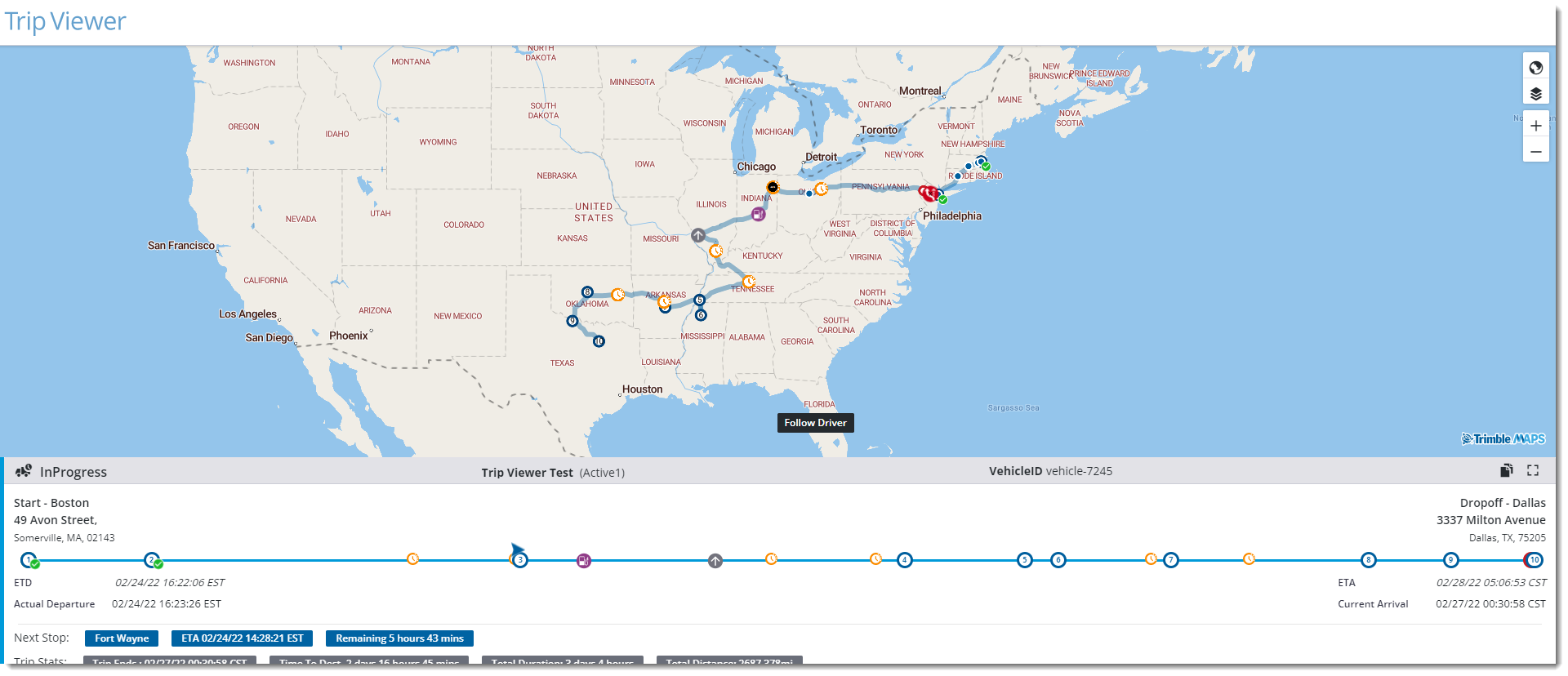
The main elements of a Trip Viewer page are described below.
The Map
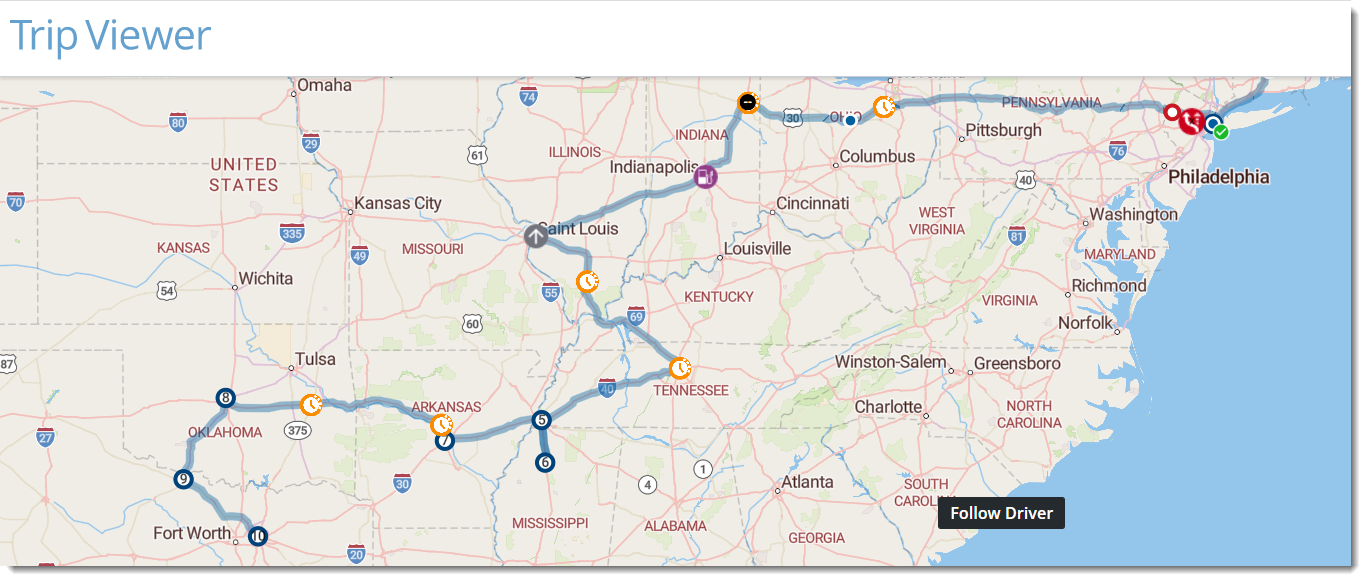
The Trip Viewer map details the route, the driver’s location, and any alerts triggered by the driver. Click a GPS ping to see location information.
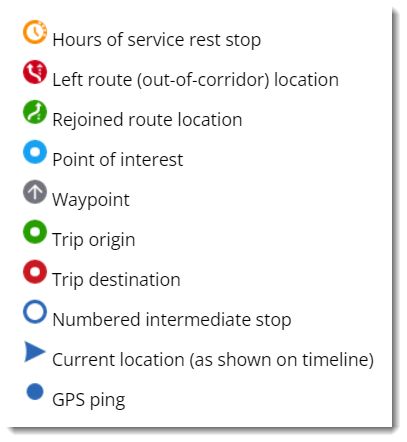
Map Icons
Map Toolbar
The toolbar includes a wide range of content and features to customize the map, and to learn more about a driver’s trip.
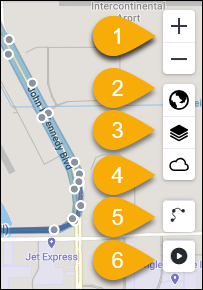
- Zoom in or out on the map.
- Select a map style.
- Select the display of content layers, including traffic, truck restrictions, and points of interest.
- Select the display of weather layers, including radar, weather alerts, and forecasts.
- Select whether to display the Current Route, Initial Route, or Latest Route.
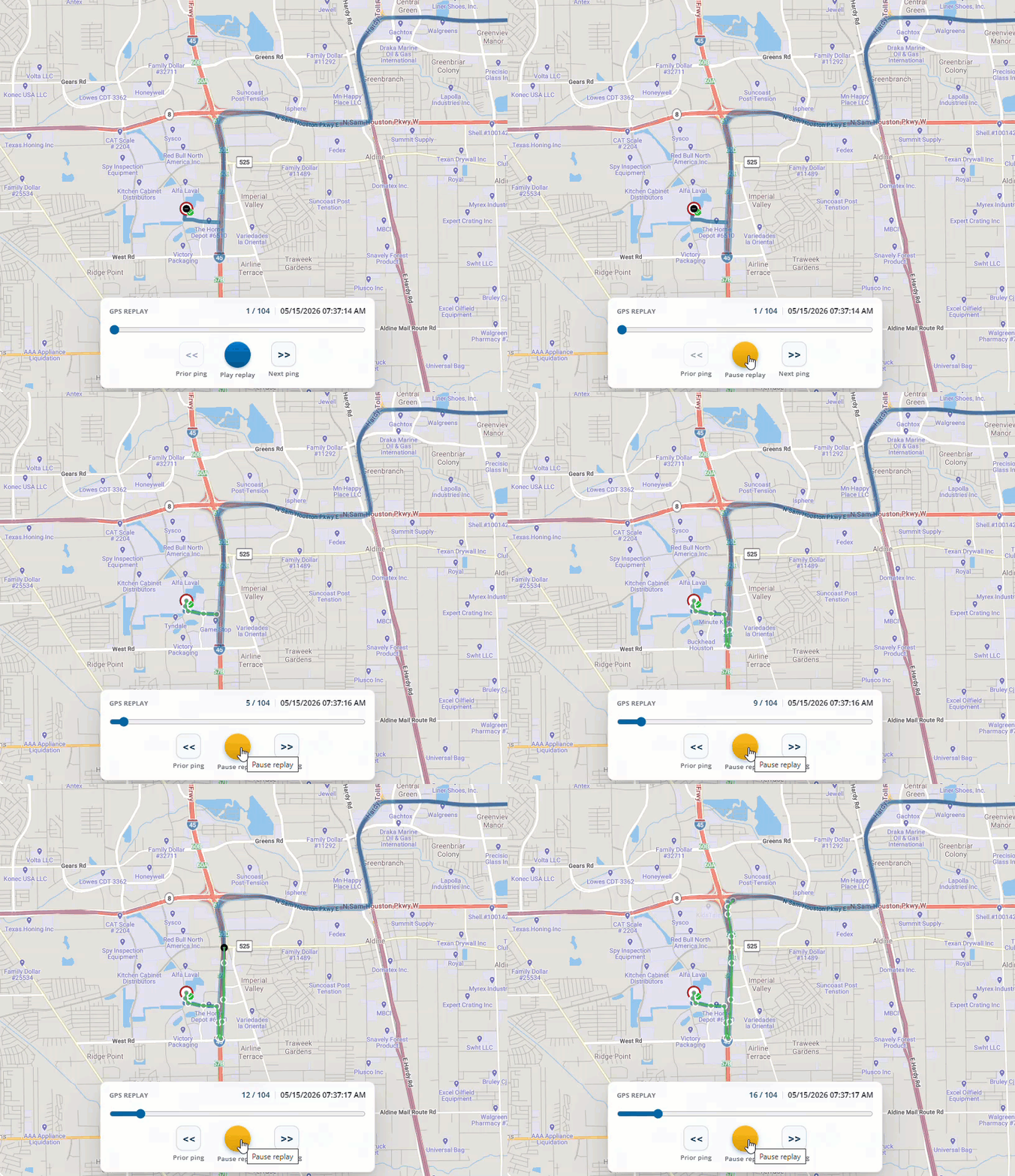
- Click to replay the driver’s journey with an animation based on GPS pings.
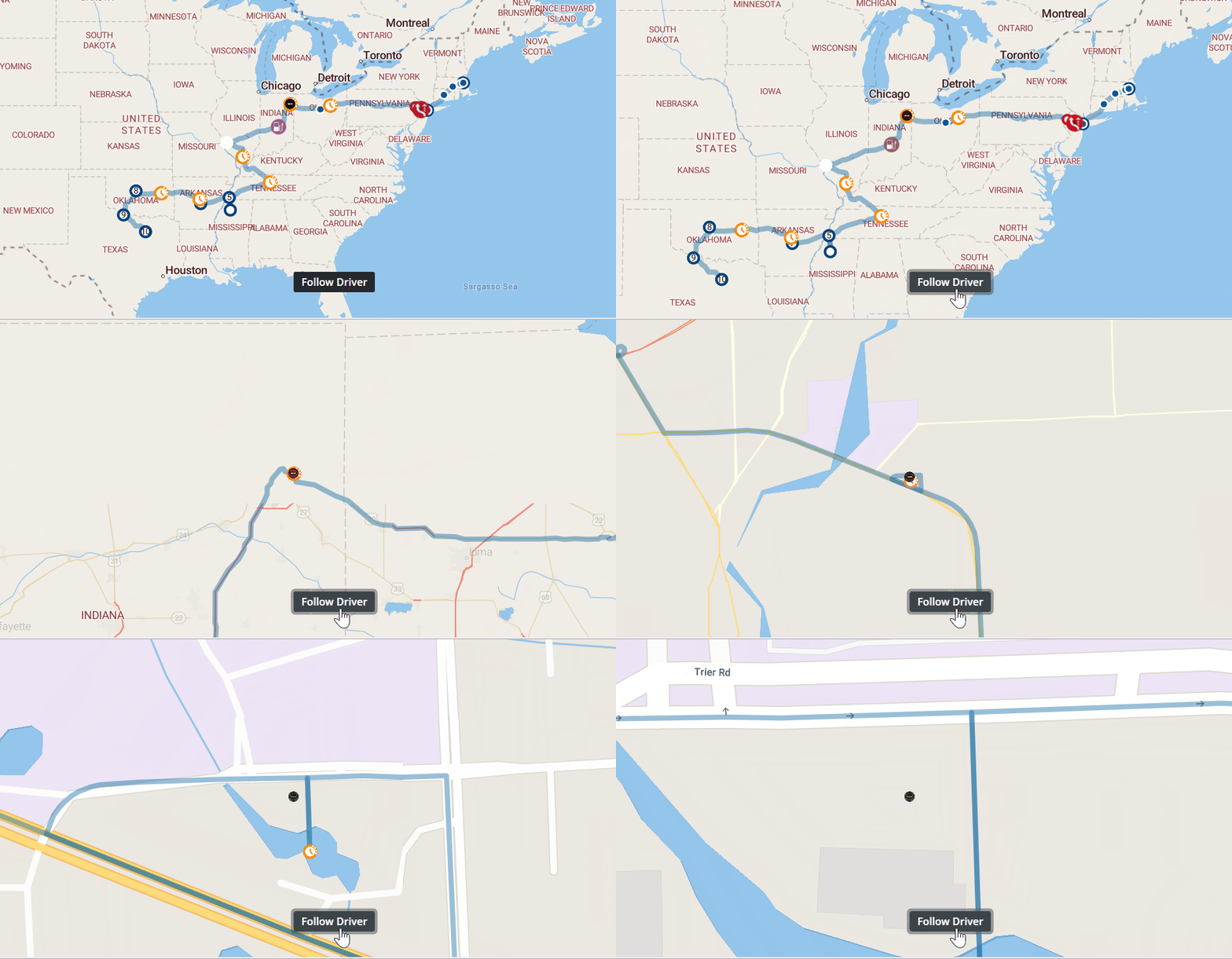
Follow Driver
The Follow Driver button zooms the map to the driver’s last reported location.
Trip Details Panel
The left panel of the Trip Viewer displays all of the most current information about the trip.
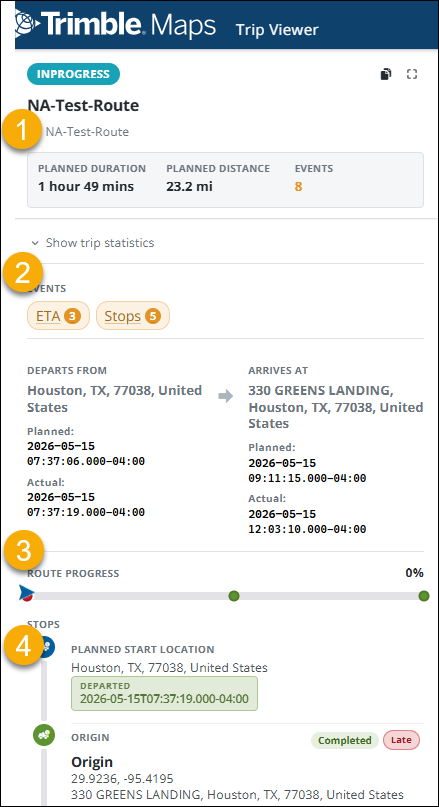
- Trip ID and summary of planned trip information.
- Summary of events. (Click for more information.)
- Summary of actual trip information.
- Details for each stop. (Click to zoom to location on map.)
Expanded Details
Additional details are available for each event during a trip.

- Click on an Events badge to open expanded details about each event.
- Click the target icon to zoom the map to the location of the event.
- Click the arrow to view additional events of that type.
Current, Initial, and Latest Route Information
The Route Layers menu allows you to display one of three versions of the route (Current, Latest, and Initial) on the map. Toggling between these layers can help you better understand how a route has changed from the initial plan.
Current Route
The Current Route is the existing Trip Viewer route that updates in real time as a trip is modified, recalculated, or changed. The Current Route is always the latest route path from the origin to the destination.
Initial Route
The Initial Route is the route saved at the time a trip is transitioned from a Planned state to InProgress. It shows the starting route path free of any deviations that come about during execution. For example, if there was a closure or traffic issue at the start of a trip—the resulting route path is retained. This allows you at the end of a trip to see the difference between what was initially suggested versus what was executed.
Latest Route
The Latest Route is the route path from the driver’s current location to the end of the route. This is particularly helpful if the driver is out of route or stopping somewhere not in the plan as the suggested path of returning to the planned route will also be returned. The difference between Current Route and Latest Route is that the Current Route only considers stops and not the driver’s location.