Trimble layers
Contents
Trimble layers are used to visualize various types of data on a map. The Maps SDK provides several built-in layers that can be toggled to display different types of information. These layers include Traffic, 3D Buildings, POIs, Weather Alerts, Weather Radar, and Road Conditions. Below is an overview of each layer and how to use them.
Traffic layer
The Traffic layer displays real-time traffic information on the map. This layer can be toggled to show or hide traffic data.
3D Buildings layer
The 3D Buildings layer renders buildings in three dimensions, providing a more realistic view of the map.
POIs (Points of Interest) layer
The POIs layer shows various points of interest on the map, such as restaurants, gas stations, and landmarks.
Weather Alerts layer
The Weather Alerts layer displays weather alerts on the map, helping users stay informed about severe weather conditions. (North America only)
Weather Radar layer
The Weather Radar layer shows real-time weather radar data, including precipitation and storm movements. (North America only)
Road Conditions layer
The Road Conditions layer provides information about the current state of the roads, such as wet, icy, or closed roads. (North America only)
Avoid/Favors Layer
(First available in v2.4)
The Avoid/Favors Layer toggles the display of Route Modifiers—road segments designated to be avoided or favored when the route is calculated.
- This setting controls map display only. It does not influence routing logic. The routing algorithm respects all avoid/favors assigned to the
assetIDregardless of whether they are displayed on the map. - Ensure that any modifiers displayed on the map are correctly associated with the active
assetIDto prevent discrepancies between the map and the calculated route.
The sample code below shows how to apply the layer.
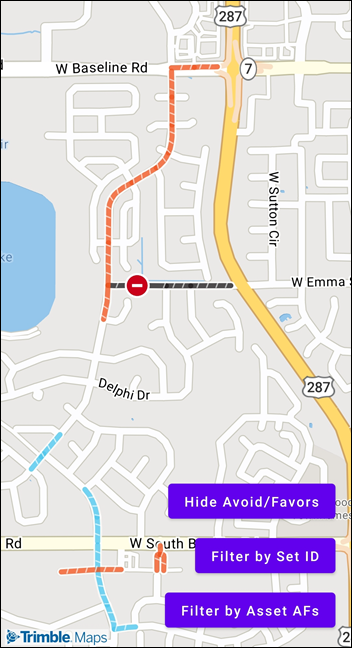
Toggle and Filter Avoid/Favors Layer
This displays all avoid/favors associated with your API key.
map!!.toggleAvoidFavorsVisibility()
You can also filter which sets of Route Modifiers are displayed using their setIDs.
map!!.setAvoidFavorsFilter(ArrayList(setIds))
// Passing an empty or null list to setAvoidFavorsFilter removes the filter and // shows all Avoid Favors in the account
map!!.setAvoidFavorsFilter(null)
There are two ways to retrieve setIDs
Option 1: Retrieve all setIDs based on your API key
var allSetIds by remember { mutableStateOf<List<Int>>(emptyList()) }
val avoidFavors = TrimbleMapsAvoidFavors.builder()
  .pageNumber(0)
  .pageSize(25) // Retrieves the first 25 AF sets on your account
  .build()

avoidFavors.enqueueCall(object : Callback<AFSetsResponse> {
  override fun onResponse(
    call: Call<AFSetsResponse?>,
    response: Response<AFSetsResponse?>
  ) {
    var ids = arrayListOf<Int>()
    if (response.body() != null) {
      for (set in response.body()!!.afSets()) {
        ids.add(set.setID())
      }
    }
    allSetIds = ids
  }

  override fun onFailure(
    call: Call<AFSetsResponse?>,
    t: Throwable
  ) {
  }
})
Option 2: Retrieve setIDs assigned to a specific assetID
var assetSetIds by remember { mutableStateOf<List<Int>>(emptyList()) }
val assetAvoidFavors = AssetAvoidFavors.builder()
  .vehicleId(TrimbleMapsAccountManager.getAccount()!!.assetId()!!)
  .build()

assetAvoidFavors.enqueueCall(object : Callback<AssetAvoidFavorsResponse> {
  override fun onResponse(
    call: Call<AssetAvoidFavorsResponse?>,
    response: Response<AssetAvoidFavorsResponse?>
  ) {
    var ids = arrayListOf<Int>()
    if (response.body() != null) {
      for (set in response.body()!!.data()) {
        ids.add(set.setId())
      }
    }
    assetSetIds = ids
  }

  override fun onFailure(
    call: Call<AssetAvoidFavorsResponse?>,
    t: Throwable
  ) {
  }
})
Example Usage
The Trimble layers code example shows how to set up a map with buttons to toggle these Trimble layers. In the example, the onClickToggleTrimbleLayer function handles the button clicks and toggles the corresponding layer on the map. This setup allows users to easily switch between different types of map data, enhancing the map’s functionality and user experience.